
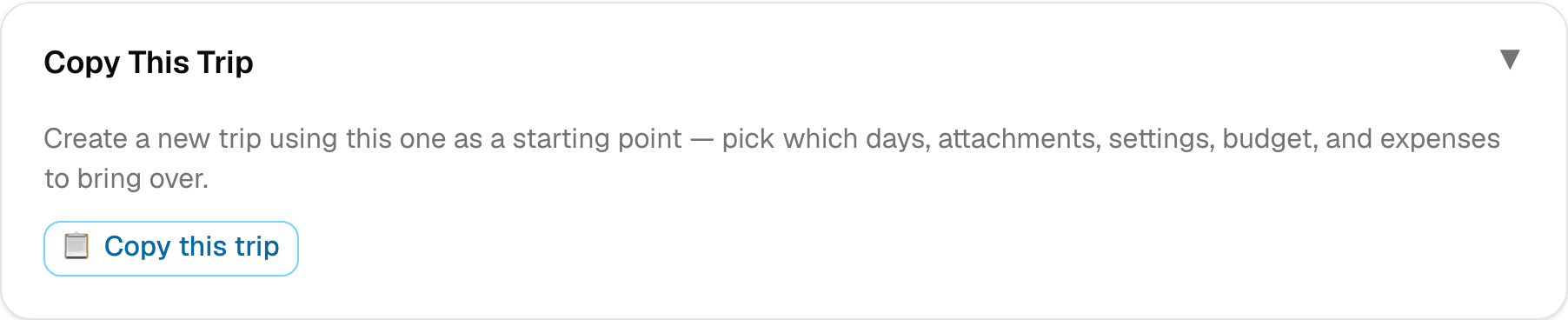
Step 1 of 3 — Open the trip's Settings tab and find "Copy This Trip."
How to Copy an Existing Trip
Planning the same kind of trip again? Copy an old one instead of starting from scratch — same restaurant list, same packing plan, same budget categories, new dates.
Step 1 — Open Copy This Trip
Go to the trip you want to copy, open its Settings tab, and find the Copy This Trip section.
Step 2 — Tap "Copy this trip"
This opens a dialog where you'll set up the new trip.
Step 3 — Choose a name and new dates
Give the new trip a name and pick a new start date. If you're copying any itinerary days, the end date is calculated for you automatically.
Step 4 — Pick what to bring over
You're in full control of what copies:
- Itinerary — none of it, all of it, or a specific range of days. If you only pick a range (say, days 3–5 of a longer trip), those become Day 1 onward on the new trip.
- Attachments — item-level files and/or trip-level documents.
- Trip planning preferences — day-planning hours and cover image.
- Budget, Expenses, and Checklist — each is its own checkbox.
A few things always stay the same: currency, traveler type, family names, and destination copy over automatically since the new trip needs them. Sharing and co-travelers are never copied — every new trip starts with just you, so you can decide who to invite fresh.
Step 5 — Create the copy
Tap Create copy. SimplyVoy builds the new trip and takes you straight to it, already populated with everything you selected.
From here, treat it like any other trip — add, edit, or remove anything before you share it with your group.