
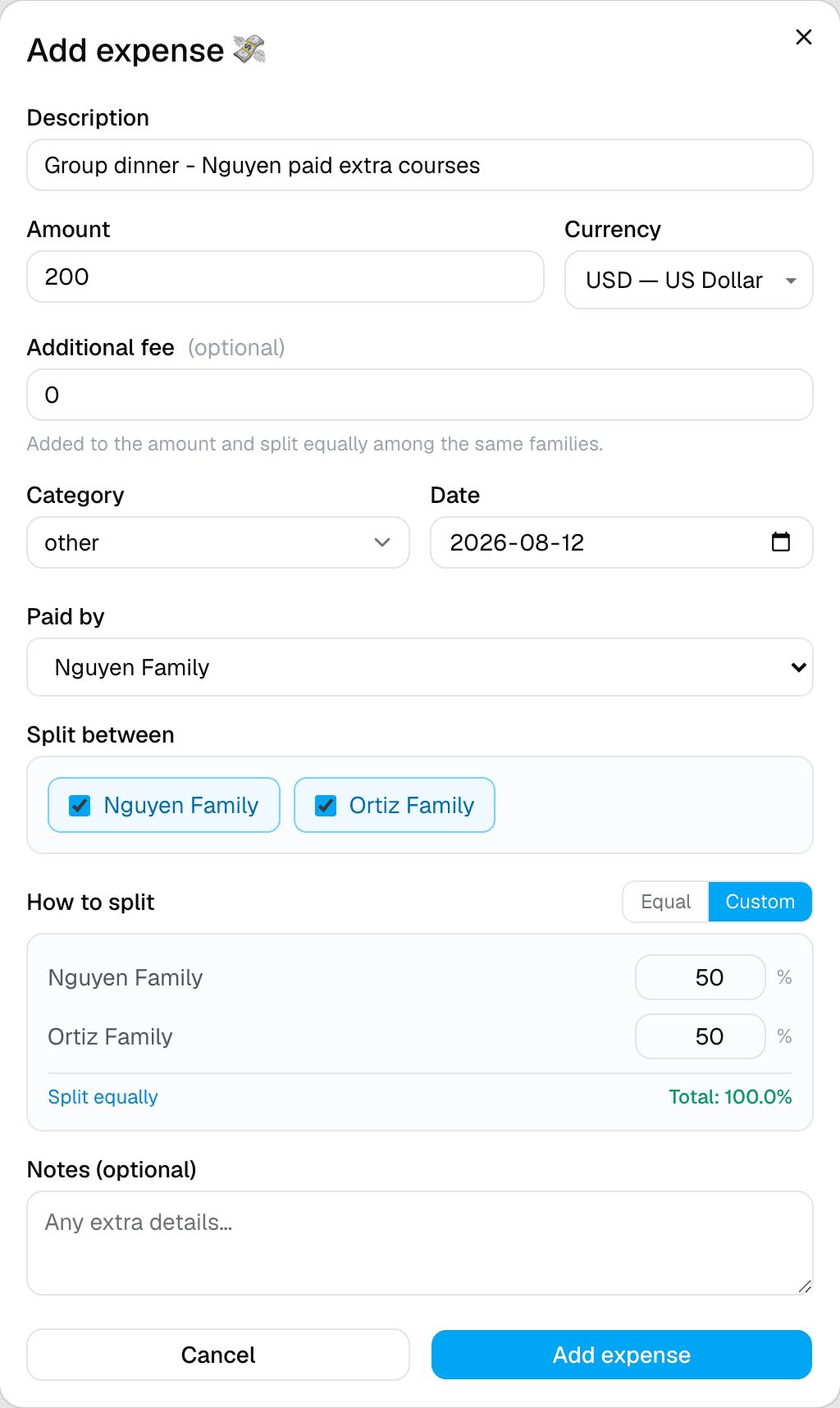
Step 1 of 3 — Switch from Equal to Custom on any expense with 2+ people.
How to Create a Custom Expense Split
Not every shared cost is a clean 50/50. Maybe one family ordered extra courses at dinner, or one couple used a bigger hotel room. Custom splits let you set the exact share for each person.
Step 1 — Start adding an expense as usual
Open + Add expense, fill in the description and amount, and pick Paid by and Split between as normal. The How to split control only appears once you've selected 2 or more people to split between.
Step 2 — Switch to Custom
Tap Custom instead of Equal. Each selected person gets a percentage field, pre-filled at an equal share to start.
Step 3 — Set the percentages
Type the exact percentage for each person. A running total at the bottom turns green once everything adds up to exactly 100% — SimplyVoy won't let you save until it does. Made a mistake? Tap Split equally to reset back to an even split.
Step 4 — Save it
Tap Add expense. The custom breakdown shows right on your Expenses list, like "Nguyen Family (70%), Ortiz Family (30%)" — so everyone can see exactly how it was split at a glance.
A couple of things to know
- Custom splits are per-expense — switching one expense to Custom doesn't change how any other expense splits.
- Balances and settlement math automatically account for custom percentages, the same way they do for equal splits.