
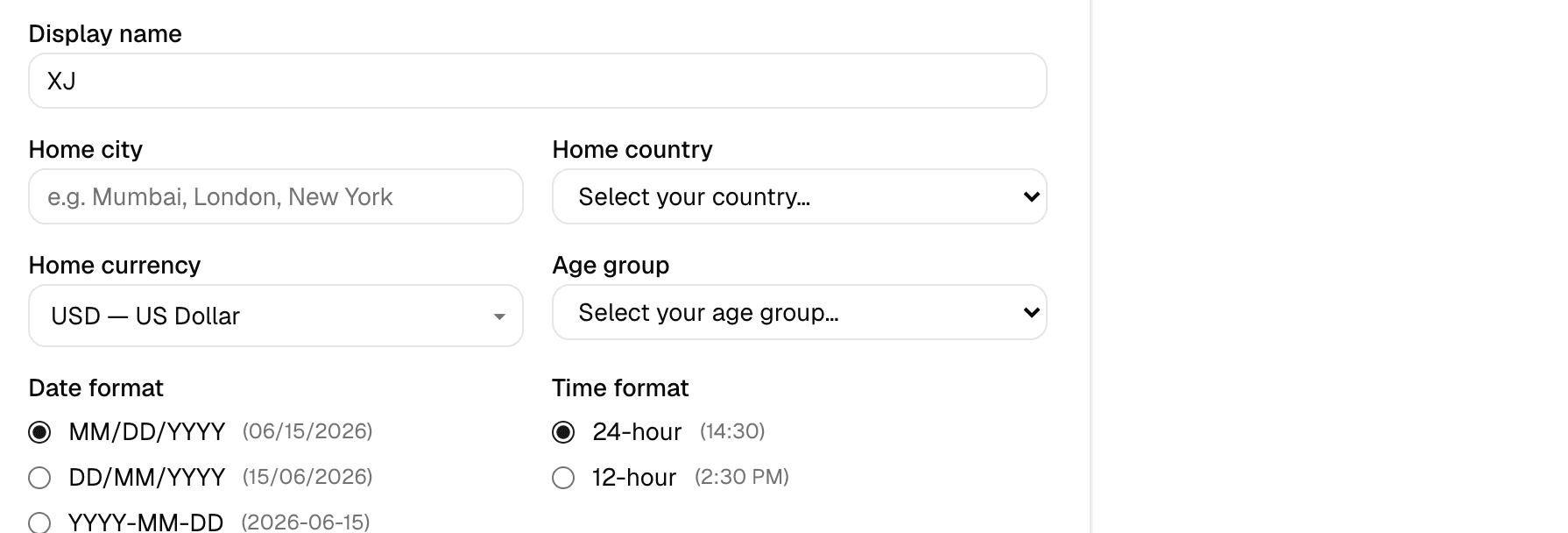
Step 1 of 3 — Set your display name, home currency, and date/time format.
How to Customize Your Profile and Theme
Make SimplyVoy feel like yours — your name, your currency, your color scheme.
Step 1 — Update your basics
On your Profile page, set your display name, home city, home country, home currency, and age group. Your home currency is used as the default across new trips.
Step 2 — Pick your date and time format
Choose between MM/DD/YYYY, DD/MM/YYYY, or YYYY-MM-DD, and between 12-hour or 24-hour time — both shown with a live example so you know exactly what you're picking.
Step 3 — Choose a color theme
Scroll to Appearance and pick from five themes:
- Ocean — crisp sky-blue & white
- Midnight — deep navy dark mode
- Pastel — soft lavender & cream
- Bloom — warm rose & blush
- Nature — earthy greens & sand
Step 4 — Fine-tune the look
Turn on a subtle dot-grid background for a bit of texture, and choose your itinerary item tile color and text size — these only apply when your trip is set to show items as tiles.
Step 5 — Save
Tap Save profile for your basics, and Save appearance for theme changes — they're two separate sections with their own save buttons.
A couple of things to know
- Theme changes apply across the whole app, not just one trip.
- Your avatar can be changed by tapping it — pick from a set of emoji, or fall back to your initials.