
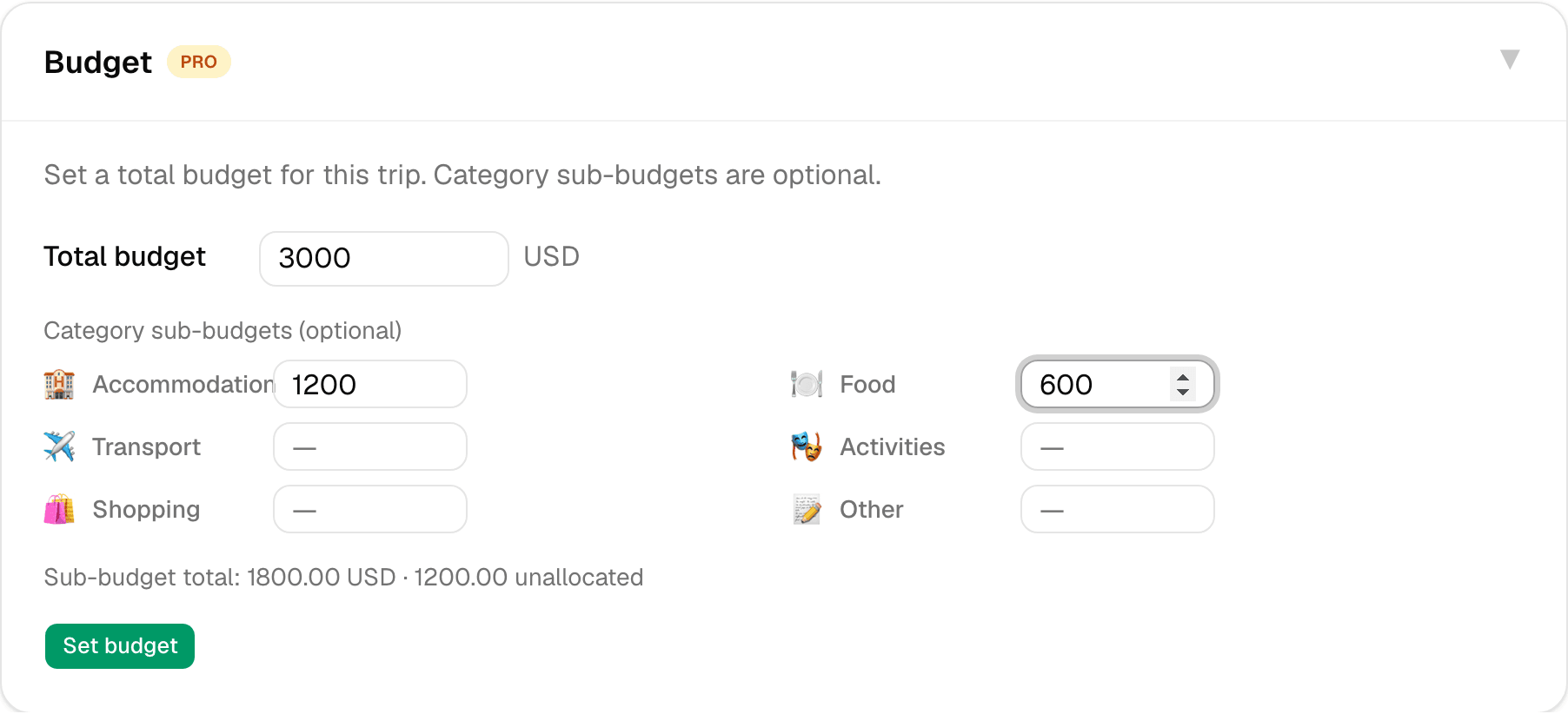
Step 1 of 2 — Set a total budget, and optionally split it across categories.
How to Track Your Trip Budget
Set a number you don't want to go over, and let SimplyVoy watch it for you as expenses come in.
Step 1 — Set a total budget
Open a trip's Settings tab and find the Budget section. Enter a Total budget and tap Set budget.
Step 2 — Break it down by category (optional)
You can also set a budget per category — Accommodation, Food, Transport, Activities, Shopping, Other. This is entirely optional; categories with no sub-budget just track total spending without a limit.
Step 3 — Log expenses as normal
Every expense you add (see the Split Expenses guide) counts toward the budget automatically, using its category if one is set.
Step 4 — Check the Budget tab
Open the Budget tab on the trip to see:
- A progress bar for your total spend vs. your total budget
- How much you have remaining, or how far over you've gone
- A breakdown by category, each with its own progress bar
- A chart comparing budgeted vs. actual spending by category
A couple of things to know
- If your trip has multiple families or people, the Budget tab can be scoped to show just your share of shared expenses, not the group total — useful when everyone's tracking their own spending.
- Category sub-budgets don't have to add up to the total — SimplyVoy just flags it if they exceed it.
- Nothing here affects settlement between people — the Budget tab is about staying under a number, and the Expenses tab is about who owes whom.